Showing posts with label Emboss. Show all posts
Showing posts with label Emboss. Show all posts
Saturday, March 12, 2011
 2:30 PM |
  Posted by
justcreations1
Posted by
justcreations1
Embossed Paper - Free Photoshop Tutorial and Full Size Examples
Create a new paper 3600x3600 300 DPI

Create a New Image 3600x3600 300 DPI.
Fill the Bottom (Background) layer with the color you want (1)
Create a New Layer above the Background (2)
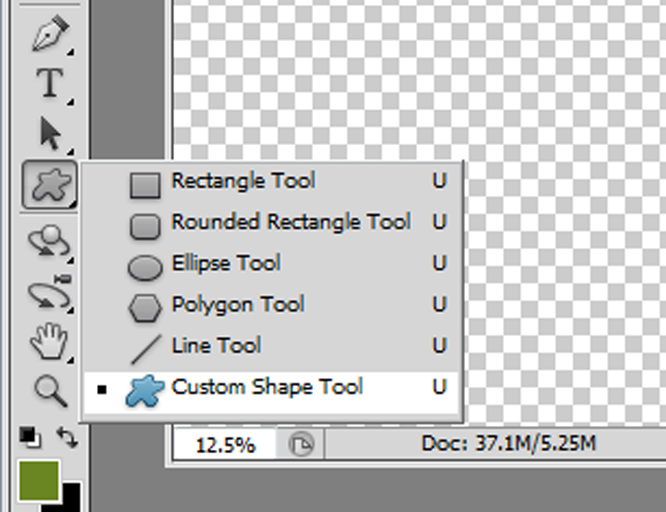
Go to Shapes = Custom Shape Tool.

Using the Dropdown box (1) choose a custom shape. I'm going to use the Sun Shape (2).

Draw your design how ever you want it on the paper. It doesn't matter what color you choose, it won't show up anyway.

Go to the Layers Pallet and Turn the Fill to 0 on the Layer with the Design (1)
You'll notice the image is gone, don't worry, we'll get that back in the next steps.

Double Click on the Layer Thumbnail to bring up the Blending Options

To do the Emboss Down you would choose the settings I have here.
When it comes to the Shading choose the same color as your background for the highlight and a darker shade of that color for your shading.

Now go to the Inner Shadow and give it a little Inner Shadow (using the same color you did for the Shadow in this step.
That's it for the Emboss - Down.
To do the Up follow the next steps.
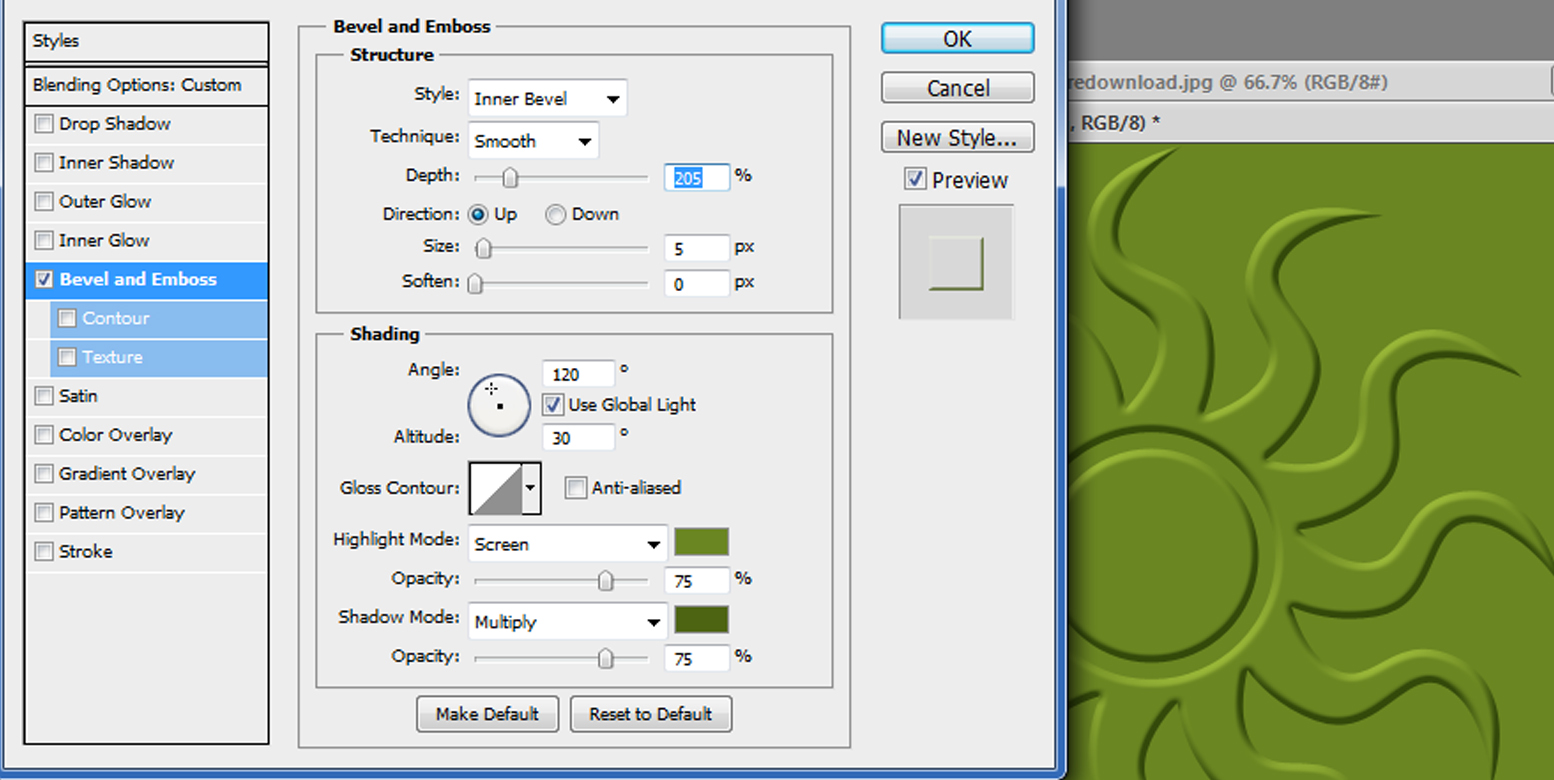
Going to the Blend Options as you did in the previous step go to the Bevel and Emboss tab and use the settings I have here.
Use the same color as you chose for the background for the Highlight and a darker shade of the color you chose for the background for the Shading.
That's it for the Embossing - Up.

You can download the examples I used in this tutorial here.
I would love to see what you create with this tutorial
Thank you!
 Labels:

Subscribe to:
Posts (Atom)
Proud Designer for


Grab My Blinkie

 >
>
